Post

Top 5 Must-Have Accessories for Your Home Office Setup

Working from home has become a normal part of life and having the right accessories can turn your desk into a productive, comfortable, and inspiring workspace. Whether you’re a freelancer, student, or remote employee, these essential items will help you stay organized, focused, and motivated throughout the day.


🖥️ 1. Ergonomic Chair

Comfort is key when you’re spending hours at your desk. An ergonomic chair supports your posture, reduces back pain, and keeps you comfortable during long work sessions. Look for one with adjustable height, lumbar support, and breathable fabric. Investing in a good chair means investing in your long-term health.

💡 Tip: Brands like Secretlab, Herman Miller, or even budget-friendly options like IKEA’s Markus chair are great choices.

⌨️ 2. Wireless Keyboard and Mouse

A wireless keyboard and mouse combo declutters your workspace and improves your typing speed and precision. Choose a quiet, responsive keyboard and a mouse that fits comfortably in your hand. If you often switch between devices, look for Bluetooth models that can pair with multiple gadgets.

💡 Tip: Logitech and Keychron offer excellent ergonomic and stylish wireless options.

💡 3. Desk Lamp with Adjustable Brightness

Proper lighting reduces eye strain and boosts concentration. A desk lamp with adjustable brightness helps you adapt to different lighting conditions, whether it’s day or night. Go for LED lamps with warm and cool settings they’re energy-efficient and gentle on your eyes.

💡 Tip: Lamps with built-in USB charging ports add extra convenience.

🎧 4. Noise-Cancelling Headphones

If your home environment is noisy, noise-cancelling headphones are a lifesaver. They help you focus by blocking distractions, making online meetings clearer and more professional. Whether you prefer over-ear or in-ear styles, comfort and battery life are key.

💡 Tip: Bose, Sony, and Anker offer excellent models for different budgets.

🧹 5. Cable Management System

A tidy desk keeps your mind clear. Use a cable management system clips, sleeves, or under-desk trays to organize wires and prevent clutter. It not only looks cleaner but also makes it easier to move or replace devices.

💡 Tip: Label your cables to save time troubleshooting later.

“Create a workspace that works for you — not against you.”

Read More
Post

Best Budget Laptops for Sri Lankan University Students (2025 Edition)

Starting uni means assignments, LMS logins, group projects, and commuting with a backpack that already weighs like a neutron star. Your laptop has to be fast, light(ish), and affordable. Using current listings from Orikmo Online Shopping Store, here are student-friendly picks across budgets—with plain-English reasons to choose each.

How to choose (quick checklist)

  • CPU: Aim for Intel Core i3/“Core 3” or Ryzen 3 minimum; Core i5/“Core 5” or Ryzen 5 is ideal.
  • Memory: 8 GB RAM baseline; 16 GB if you can.
  • Storage: SSD mandatory (256–512 GB).
  • Screen & weight: 14–15.6″; under ~1.8 kg is kinder on bus/train life.
  • Warranty & service: Local support is gold when deadlines loom.

Under LKR 100,000 — Starter & everyday study

  1. DELL 7440 i7 4th Gen (Reconditioned) — Rs. 53,000
    8 GB / 240 GB SSD, touchscreen. Great for Docs, Zoom, and notes on a budget.
  2. HP 450 G3 i5 6th Gen (Reconditioned) — Rs. 63,000
    8 GB / 240 GB SSD. A practical daily driver for lectures and browsing.
  3. DELL 5420 i5 11th Gen (Reconditioned) — Rs. 88,000
    8 GB / 240 GB SSD. Much newer platform; excellent value if you want snappier performance without stretching past 100k.

Who’s this tier for?
First-years, humanities/business students, and anyone who needs Word, Slides, Teams, and light multitasking.

LKR 100,000 – 150,000 — Best value sweet spot

  1. E-MARK PN1574P i5 10th Gen — Rs. 128,900
    16 GB / 512 GB, 15.6″ FHD IPS. Huge RAM/storage for the price—great for big coursework folders.
  2. LENOVO V15 G4 AMN Ryzen 3 7320U — Rs. 126,500
    8 GB / 512 GB. Efficient modern Ryzen; solid student all-rounder.
  3. E-MARK PN1574P i7 10th Gen — Rs. 145,500
    16 GB / 512 GB. Extra CPU headroom for code compiles and heavier browsing.
  4. ACER Aspire Lite AL16 i3-1305U — ~Rs. 141,000 (offer)
    8 GB / 256 GB, 16″ FHD IPS. Big screen for spreadsheets and reading.
  5. MSI Modern 15 i3-1315U — Rs. 149,500
    8 GB / 512 GB. Modern CPU + decent storage = smooth everyday use.
  6. ACER Aspire A15 Core 3-100U — Rs. 149,500
    8 GB / 512 GB. Current-gen entry CPU with roomy SSD.

Who’s this tier for?
Most students—CS/IT included—who want a long-term daily machine without overspending.

LKR 150,000 – 200,000 — Study now, future-proof more

  1. ASUS VivoBook 15 i3-1315U — Rs. 152,500
    8 GB / 512 GB. Reliable workhorse with a nice 15.6″ FHD panel.
  2. ASUS VivoBook X1504VA i5-1334U — Rs. 161,000
    8 GB / 512 GB. Noticeably faster than i3 for compiles and multitasking.
  3. LENOVO IdeaPad Slim 3 i5-13420H — ~Rs. 183,900 (offer)
    16 GB / 512 GB. H-series chip + 16 GB RAM = excellent for dev tools, VMs, and data work.
  4. HP 15-FD1228TU Core 5-120U — Rs. 199,500
    8 GB / 512 GB, Windows 11. Balanced modern spec with wide local service presence.

Who’s this tier for?
Engineering/IT students, video-heavy coursework, and anyone who wants to keep the same laptop for many semesters.

LKR 200,000 – 210,000 — Premium everyday

  1. ASUS VivoBook 15 Core 5-120U — Rs. 205,000
    8 GB / 512 GB, Win 11. Polished daily machine.
  2. ACER Aspire A15 Core 5-120U — Rs. 206,000
    16 GB / 512 GB, IPS. Extra RAM is clutch for Chrome tab jungles + IDEs.

Gaming & Graphics (study + play)

If you’re into Blender, Unreal, or weekend esports, these dGPUs help:

  • MSI Thin 15 i7-13620H + RTX 2050 — Rs. 275,000
  • MSI Cyborg 15 i5-13420H + RTX 2050 — Rs. 269,500
  • ASUS TUF A15 Ryzen 7 + RTX 3050 — Rs. 295,000
  • MSI 15 i5-13420H + RTX 4050 — Rs. 328,000
  • ASUS TUF Gaming F16 i7-13th + RTX 4050 — Rs. 372,500

Tip: For 3D/CUDA workflows, the RTX 3050/4050 models are worth the stretch.

Reconditioned vs New — which should you buy?

Reconditioned (under 100k): Amazing for note-taking, docs, and browsing. Check battery health and SSD condition; they’re still wildly better than HDD-era machines.

New (100k–200k): Better for 3–4 years of use, modern CPUs, and longer battery life.

Model CPU RAM / SSD Display GPU Price (LKR) Best for
DELL 7440 (Reconditioned) Core i7 4th Gen 8GB / 240GB Touch, 14–15.6″ Integrated 53,000 Budget notes & lectures
HP 450 G3 (Reconditioned) Core i5 6th Gen 8GB / 240GB 15.6″ Integrated 63,000 Everyday study
DELL 5420 (Reconditioned) Core i5 11th Gen 8GB / 240GB 14–15.6″ Integrated 88,000 Value with newer platform
E-MARK PN1574P Core i5 10th Gen 16GB / 512GB 15.6″ FHD IPS Integrated 128,900 Best RAM/storage under 150k
Lenovo V15 G4 AMN Ryzen 3 7320U 8GB / 512GB 15.6″ FHD Integrated 126,500 Affordable modern Ryzen
MSI Modern 15 Core i3-1315U 8GB / 512GB 15.6″ FHD Integrated 149,500 Sleek daily driver
Lenovo IdeaPad Slim 3 Core i5-13420H 16GB / 512GB 15.6″ FHD Integrated 183,900 Great for dev tools & VMs
HP 15-FD1228TU Core 5-120U 8GB / 512GB 15.6″ FHD Integrated 199,500 Balanced new-gen daily use
ACER Aspire A15 Core 5-120U 16GB / 512GB 15.6″ FHD IPS Integrated 206,000 Heavy multitasking at 200k
ASUS TUF A15 Ryzen 7 16GB / 512GB 15.6″ FHD 144Hz RTX 3050 295,000 Gaming + 3D coursework

Where to buy & how to get help

Visit Orikmo or call: +94 777 709 899.

Galle branches & contacts (from your site):

  • Wakwella Road: +94 91 22 33 810 / +94 77 19 00 000 / +94 76 01 14 297
  • Bataganvila: +94 91 222 9400 / +94 76 011 4299 / +94 76 011 4297
  • Aruna Computers (Makumbura): +94 91 228 6789 / +94 76 360 1180 / +94 76 011 4300

Availability and prices are based on the current Orikmo listings and can change fast—check the product page before you head out.

Read More
Post

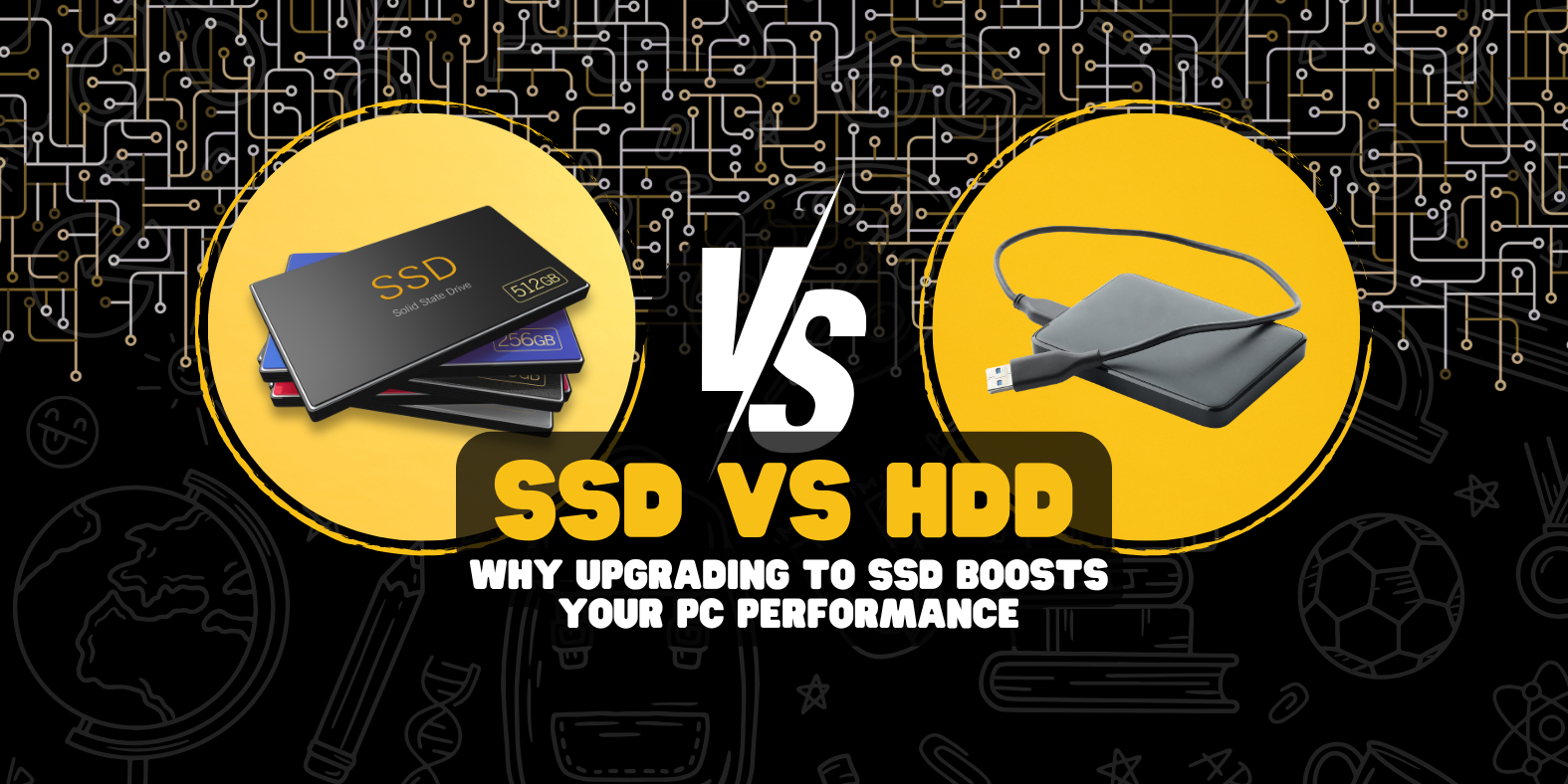
SSD vs HDD: Why Upgrading to SSD Boosts Your PC Performance

When it comes to making your computer faster, the single biggest upgrade you can do is switching from a traditional Hard Disk Drive (HDD) to a Solid State Drive (SSD). Whether you’re a gamer, a professional, or just someone tired of waiting for Windows to load, understanding the difference between these two storage technologies will help you see why SSDs are the smart choice.

What’s the Difference Between HDD and SSD?

HDD (Hard Disk Drive):
Works like an old record player. It has spinning magnetic disks (platters) and a mechanical arm that reads and writes data. Reliable but slower because it depends on moving parts.

SSD (Solid State Drive):
Works like a giant USB flash drive. It uses flash memory chips to store data with no moving parts. That makes it much faster, quieter, and more durable.

5 Ways an SSD Supercharges Your PC

1. Boot Time

  • HDD: 40–60 seconds on average
  • SSD: 10–20 seconds

You’ll be on your desktop before you even finish your coffee sip.

2. File Loading & Apps

Programs like Chrome, Photoshop, or games launch in seconds on an SSD.
Large files (videos, projects, images) open instantly compared to the laggy HDD.

3. Multitasking

With no moving parts, SSDs can handle multiple read/write tasks at once. That means you can update Windows, stream music, and open a game — without your PC stuttering.

4. Durability

HDDs are fragile. Drop your laptop with an HDD, and the moving parts can fail.
SSDs are shock-resistant and ideal for portable devices.

5. Energy Efficiency

SSDs use less power, which means longer laptop battery life and less heat inside your system.

When Should You Still Use HDDs?

HDDs are still useful for bulk storage. If you need to keep large backups, movies, or less frequently used data, HDDs are cheaper per GB. A balanced setup many professionals use is:

  • SSD for operating system & software
  • HDD for mass storage

Conclusion: Time to Upgrade

Switching to an SSD is like replacing a donkey cart with a sports car. If your PC feels slow, this single upgrade can make it feel brand new. For everyday use, gaming, or professional workloads, SSDs offer the speed, reliability, and efficiency modern users expect.

💡 Pro tip: Always check if your motherboard supports SATA SSDs or the newer NVMe SSDs (much faster).

Read More
Post

Windows 11 - Key Features Every User Should Know

Windows 11 keeps evolving with yearly updates and monthly feature drops. This guide highlights the upgrades regular users actually feel—plus a few power-user tricks—so you can get more done with less fuss.

Use this as a quick reference: each section explains what it is, why it matters, and how to try it on your PC.

1) Snap Layouts — organize windows in seconds

What: Grid layouts for instant side-by-side apps.

Why: Faster multitasking for research + notes, sheets + email, calls + docs.

  • Try it: Hover the maximize button or press Win + Z and drop apps into zones.
  • Tip: Use Win + Arrow Keys to snap left/right quickly.

2) File Explorer upgrades you’ll actually notice

What: Built-in archive creation (.7z, .tar) and modern compression options (gzip, bzip2, xz, zstd), plus UI refinements.

Why: Fewer external tools, faster daily tasks.

  • Try it: Right-click files → Compress to → choose your format.
  • Tip: Use tabs in Explorer to group related work (right-click → Open in new tab).

3) Dynamic Lighting — native RGB control

What: Windows can control supported RGB keyboards, mice, and accessories without multiple vendor apps.

Why: Less bloat, unified effects.

  • Try it: Settings → Personalization → Dynamic Lighting.
  • Tip: Disable vendor apps from auto-starting to avoid conflicts.

4) On-device AI on Copilot+ PCs (hardware-dependent)

What: AI features that use a laptop’s NPU (neural processing unit), such as Live Captions with translation, Windows Studio Effects, Paint/Photos AI, and Auto Super Resolution for supported games.

Why: Useful video calls, quick edits, and smoother visuals—often without heavy cloud usage.

  • Try it: Check Settings → System → About to confirm your device class; explore Settings → Bluetooth & devices → Cameras for Studio Effects, and the latest Photos / Paint features via Microsoft Store updates.
  • Note: Availability varies by device, region, and admin policies.

5) Sudo for Windows — power-user speed

What: Run elevated commands from a normal Terminal using sudo, with options to open a new window or run inline.

Why: Less context-switching when you occasionally need admin rights.

  • Enable: Settings → System → For developers → Sudo.
  • Example:
# Install a utility from winget using sudo
sudo winget install Microsoft.PowerToys

6) Privacy, security & stability improvements

What: Stronger SMB defaults for file shares, streamlined components (removing some legacy bits), and improved backup foundations.

Why: Safer by default, fewer attack surfaces, easier device recovery.

  • Try it: Settings → Accounts → Windows backup to confirm backup settings; use Windows Security to review protection areas.

7) Wi-Fi 7 (enterprise first, consumer next)

What: OS-level support for newer Wi-Fi standards on the right hardware and access points.

Why: Lower latency, higher throughput—great for large file syncs and calls.

  • Tip: Check your adapter driver updates via Device Manager → Network adapters and your vendor’s support page.

8) Everyday AI in Photos, File Explorer & search

What: Gradual additions like quick summaries, smarter local search, and basic image tweaks—especially on Copilot+ PCs.

Why: Small time-savers that add up through the day.

  • Try it: Update built-in apps via Microsoft Store → LibraryGet updates.

9) What’s gone (or going)

Windows Subsystem for Android (WSA) reached end of support in 2025. If you still have it, expect limited functionality over time.

10) How to get these features

  • Update: Settings → Windows Update → enable “Get the latest updates…” → Check for updates.
  • Health: Review Microsoft’s release notes if you hit a safeguard hold.
  • Managed PCs: Some features activate via an enablement package or admin policy.

Quick cheat-sheet

  • Snap Layouts: Win + Z for instant grids.
  • Archive like a pro: Right-click → Compress to (.7z, .tar, etc.).
  • RGB control: Settings → Personalization → Dynamic Lighting.
  • Sudo: Enable in For developers to elevate commands quickly.
  • Security first: Keep Windows, drivers, and Store apps updated.

Final Word

Windows 11’s best features aren’t hidden—they’re under-used. Learn Snap Layouts, explore the new File Explorer, try Dynamic Lighting if you have RGB gear, and—if your hardware supports it—experiment with on-device AI. Keep your system updated and you’ll keep discovering small upgrades that make every day smoother.

Read More
Post

How to Protect Your Business Data: Affordable IT Security Tips for SMEs in Sri Lanka

Cyberattacks aren’t just a “big-company problem.” In Sri Lanka, small and medium businesses (SMEs) run lean teams, rely on cloud tools, and often work from shared laptops and mobile devices. That mix is productive—and attractive to attackers. The good news: you can build strong protection with simple, affordable controls and a clear checklist.

This guide focuses on high-impact steps you can implement this week, and a practical roadmap for the next 90 days.

The 80/20 Security Plan (Focus on the basics first)

Security is a stack. Start with the controls that prevent the most common incidents: weak passwords, phishing, lost devices, unpatched software, and missing backups.

Quick Wins You Can Do in 1–3 Days

  • Turn on MFA (multi-factor authentication) everywhere (email, accounting, banking, CRM, cloud storage).
  • Use a password manager (e.g., Bitwarden/1Password) to create unique, strong passwords.
  • Enable automatic updates for Windows/macOS, browsers, and mobile apps.
  • Backups with 3-2-1 rule: 3 copies, 2 different media, 1 offsite/offline.
  • Lock screens + device encryption (BitLocker on Windows, FileVault on macOS; PIN/biometric on phones).
  • Replace default router passwords and disable WPS on Wi-Fi routers.
  • Create a 1-page incident plan: who to call, how to isolate a PC, where backups live, how to keep the business running.

Passwords & MFA: Your cheapest superpower

  • Policy: Unique passwords for every account, minimum 12 characters (passphrases encouraged).
  • Manager: Use a company-managed vault (teams feature) to share credentials safely.
  • MFA: Prefer authenticator apps (TOTP) or hardware keys over SMS when possible.
  • Access hygiene: Remove old staff accounts the same day they leave; review admin roles monthly.

Pro Tip: Make one vault per role (Sales, Finance, Ops). Apply least privilege by default.

Backup Strategy: 3-2-1 or bust

  • 3 copies of your data: production + 2 backups
  • 2 media types: local NAS/external drive and cloud
  • 1 offsite/offline: a copy not reachable from your main network (protects from ransomware)

What to back up

  • Finance (accounting, invoices), customer records, project files, key email/mailboxes, website/database.

Test restores monthly. A backup you can’t restore is just a placebo.

Email Security: Stop phishing at the front door

Human layer (simple and effective)

  • 5-minute monthly drill: show a fake invoice/urgent payment email; ask team to flag and explain why.
  • Teach “hover to preview” links and to verify bank-detail changes by calling a known number.

Technical layer (DNS & mail)

  • Publish SPF (allowed senders), DKIM (signed mail), DMARC (reject/quarantine spoofed mail).
Example DMARC record (replace domain):
Type: TXT
Host/Name: _dmarc.yourdomain.lk
Value: v=DMARC1; p=quarantine; rua=mailto:dmarc@yourdomain.lk; fo=1; sp=quarantine; adkim=s; aspf=s
  • Turn on attachment/link scanning and safe links features in your email suite.
  • Create a mailbox like security@yourdomain.lk for staff to forward suspicious emails.

Wi-Fi & Network: Keep guests and staff separate

  • Two networks: Staff (WPA2/WPA3) and Guest (internet-only).
  • Change default SSID, set a strong Wi-Fi password, disable WPS.
  • On routers/firewalls: block remote admin from the internet, auto-update firmware, and back up configs.
  • Consider DNS filtering (e.g., Quad9, Cloudflare) to block known malicious domains.

Device Security: Laptops, Desktops, and Phones

  • Full-disk encryption (BitLocker/FileVault) + auto-lock after 5–10 minutes.
  • Built-in endpoint protection (Windows Defender / macOS XProtect) is solid when kept updated.
  • USB policy: scan external drives; avoid unknown USB sticks.
  • BYOD rules: if staff use personal phones for work, require screen lock, OS updates, and remote wipe for work apps.

Patching & Software Hygiene

  • Automatic OS updates on PCs and phones.
  • Browser updates (Chrome/Edge/Firefox auto-update by default).
  • Remove unused software and admin tools you don’t need.
  • For servers/NAS: schedule a monthly patch window.

Data Handling: Classify, restrict, and encrypt

  • Classify: Public • Internal • Confidential (customer data, payroll).
  • Restrict: Share Confidential data only via access-controlled folders (Google Workspace / Microsoft 365).
  • Encrypt: Use encrypted sharing links; avoid sending sensitive files over WhatsApp unless zipped with a password and shared separately.

Minimal records rule: Collect only what you need; keep it only as long as necessary.

Affordable “Starter Stack” (SME-friendly)

  • Identity & Email: Google Workspace or Microsoft 365 (with MFA enforced)
  • Password Manager: Bitwarden (Teams), 1Password, or similar
  • Backups: Local NAS + cloud backup (e.g., Backblaze/Wasabi); versioning enabled
  • Endpoint: Windows Defender + automatic updates; macOS built-ins
  • DNS Filtering: Quad9 or Cloudflare for Teams (free tiers available)
  • Docs & Storage: Shared Drives/SharePoint with least-privilege access
  • Awareness: Short monthly phishing drills + a 1-page policy

Simple Policies That Actually Work

  • Acceptable Use: No unknown software, no sharing logins by chat, report suspicious emails immediately.
  • Access Control: Least privilege, quarterly review of who has access to which folders/applications.
  • Off-boarding: Disable accounts, revoke tokens, transfer documents the same day.
  • Mobile/WhatsApp: No sharing of passwords or card/bank images. Mask sensitive customer info.

Keep each policy one page, readable, and pinned in your team chat.

Incident Response: A one-page runbook

If a laptop is infected or lost:

  1. Disconnect from Wi-Fi/mobile data.
  2. Inform the response lead (name + phone).
  3. Preserve: Don’t wipe—note what happened, take photos of the screen if needed.
  4. Contain: Disable accounts/tokens from another device (email, VPN, SaaS).
  5. Recover: Reimage device; restore data from backup.
  6. Report & learn: What failed? Fix the gap (e.g., add MFA, adjust filters).

If you suspect email compromise:

  • Force password reset + revoke sessions, rotate app passwords.
  • Review mail forwarding rules; check sent items for fraud threads.

90-Day Roadmap (Lightweight & realistic)

Week 1

  • Enforce MFA on email, banking, and critical apps.
  • Deploy password manager to all staff.
  • Set up staff/guest Wi-Fi split; change router defaults.
  • Start daily automatic backups (local + cloud).

Weeks 2–4

  • Publish SPF, DKIM, and DMARC; enable DNS filtering.
  • Turn on device encryption; set auto-lock.
  • Draft 1-page policies (Acceptable Use, Off-boarding, Incident Plan).

Months 2–3

  • Run a restore test from backups.
  • Do a simulated phishing drill and a 30-minute team refresher.
  • Review access permissions; remove excess privileges.
  • Patch all routers/NAS/servers; document versions and dates.

Budgeting (ballpark, keep it lean)

  • Initial (one-time): Password manager seats, a decent NAS or external drives, spare router, labeling & documentation.
  • Monthly: Email suite seats, cloud backup storage, domain/DNS costs.
  • Training: 30–60 minutes per month of in-house awareness is often enough.

Spending a few thousand rupees per user per month on these basics is typically far cheaper than even a minor breach.

Final Word

You don’t need enterprise tools to be secure. With MFA, strong passwords, reliable backups, basic email protections, and clear habits, Sri Lankan SMEs can block the vast majority of common attacks and recover quickly from incidents.

If you’d like help auditing your current setup or implementing this 90-day plan, our team can assist with practical, budget-friendly options tailored to your business.

Contact Orikmo to get a quick security check and a prioritized action list.

Read More
Post

How to Choose the Right Laptop for Work, Study, or Gaming in 2025

Buying a laptop in 2025 can feel overwhelming. Model names change every few months, and spec sheets are packed with jargon. This guide explains the parts that matter—in plain language—so you can confidently choose the right machine for work, study, or gaming.

1) Start with your purpose

Before looking at specs, decide what you’ll actually do with the laptop most of the time.

  • Work (office/productivity): Documents, spreadsheets, email, video calls, web apps, light multitasking.
  • Study (school/university): Research, LMS portals (Moodle/Google Classroom), note-taking, Zoom/Teams, occasional media.
  • Gaming (and creative work): Modern games, photo/video editing, 3D/engineering tools, heavy multitasking.

Knowing your primary use case prevents overspending on features you won’t use—or underbuying and regretting it later.

2) CPU (Processor): performance for everyday speed

The CPU is the “brain” of the laptop. It affects app responsiveness, compile times, filters in spreadsheets, and export times in creative tools.

  • Good for everyday tasks: Intel Core i3 / Core or Core Ultra 5, AMD Ryzen 3 / Ryzen 5.
  • Balanced for work/creation: Intel Core i5 / Core Ultra 5–7, AMD Ryzen 5–7. Great for heavy browser use, light coding, and light editing.
  • High performance: Intel Core i7 / Core Ultra 7–9, AMD Ryzen 7–9. Ideal for serious creative work and gaming.

Practical tips

  • Prefer newer-generation chips if prices are close; they’re more efficient (better battery) and often faster.
  • For office/study, prioritize efficiency and thermals over extreme peak performance.

3) RAM (Memory): smooth multitasking

RAM determines how many tabs and apps you can keep open without slowdowns.

  • 8 GB: Minimum sweet spot for study/office in 2025.
  • 16 GB: Recommended for power users, developers, creators, and gamers.
  • 32 GB+: Niche workloads (large datasets, heavy video editing, VMs).

Dual-channel matters: Laptops with two sticks (e.g., 2×8 GB) often feel snappier than a single stick, especially with integrated graphics.

Upgradability check: Some laptops have soldered RAM; others have one or two slots. If you want to keep the laptop for years, look for at least one upgradeable slot.

4) Storage: SSD vs HDD, and what capacity to choose

  • SSD (Solid State Drive): Standard in 2025—fast boot, quick app launches, quieter. Prefer NVMe SSDs over older SATA SSDs.
  • HDD (Hard Drive): Only useful as secondary storage in bulky laptops; avoid as a boot drive.

Capacities

  • 256 GB SSD: Works for light users with cloud storage, but fills fast.
  • 512 GB SSD: Safe “default” capacity for most people.
  • 1 TB SSD: Better for gamers, creators, or anyone keeping lots of files locally.

Upgrades: Many laptops include an extra M.2 slot. This is a cost-effective way to add storage later.

5) Graphics (GPU): integrated vs dedicated

  • Integrated graphics (Intel Iris / AMD Radeon): Fine for everyday use, media, and basic creative tasks. Older esports titles may run acceptably at low/medium settings.
  • Dedicated graphics (NVIDIA GeForce RTX / AMD Radeon RX): Required for modern AAA gaming, faster video exports, 3D renders, and some AI workflows.

What to watch

  • VRAM (video memory): 6–8 GB is a practical baseline for modern games at 1080p.
  • Thermals and noise: Gaming/creator laptops run hotter. Look for good ventilation and sensible fan profiles.

6) Display: comfort and clarity

You’ll stare at the screen for hours—make it a good one.

  • Resolution: Full HD (1920×1080) is the baseline. 1440p or 4K is sharper but uses more power.
  • Panel type: IPS is widely available with good viewing angles. OLED offers deep blacks and stunning contrast for creatives and movie lovers.
  • Refresh rate: 120–144 Hz feels smoother for gaming and even for general scrolling.
  • Brightness: 300–400 nits is comfortable indoors; higher helps with bright rooms.
  • Color gamut: For content creation, target close to 100% sRGB (or better) and look for factory calibration.

Ergonomics

  • 14″ is very portable.
  • 15.6″ or 16″ provides more screen real estate for spreadsheets, timelines, and side-by-side work.

7) Battery life & charging

  • Realistic range: 6–10 hours suits study and travel. High-performance rigs may sit around 4–6 hours.
  • Watt-hours (Wh): Higher Wh generally equals longer life (e.g., 56 Wh vs 75 Wh).
  • USB-C charging: Convenient and universal. Check the supported wattage (e.g., 65 W, 100 W). Some gaming GPUs still need the proprietary brick for full performance.

8) Ports, connectivity, and extras

  • USB-C / USB-A: A mix is best. USB-C with DisplayPort/Power Delivery is particularly handy.
  • HDMI: Useful for projectors/TVs without adapters.
  • Card reader: Handy for photographers and creators.
  • LAN (RJ-45): Still valuable for stable office or gaming connectivity.
  • Wi-Fi 6 / 6E: Faster, less congested wireless. Bluetooth 5.x for peripherals.
  • Webcam & mic: 1080p webcams improve call quality; look for noise-reduced mics.
  • Keyboard & trackpad: Backlit keyboards help at night. Ensure comfortable key travel and a responsive trackpad.

9) Build quality, thermals, and serviceability

  • Chassis materials: Aluminum/magnesium feels premium and dissipates heat better; good plastics are lighter and can still be durable.
  • Hinges: A solid hinge prevents wobble and early wear.
  • Cooling: Larger vents and multiple heat pipes/fans typically mean quieter sustained performance.
  • Serviceability: Bottom panel access, standard screws, and replaceable SSD/RAM extend the useful life of the device.

10) Budget guide (Sri Lanka, 2025)

Prices vary with exchange rates and promotions, but these ranges help frame expectations:

  • Entry (Rs. 120,000 – 180,000): i3/Ryzen 3 or i5/Ryzen 5 (previous gen), 8 GB RAM, 256–512 GB SSD, FHD IPS. Great for study/office.
  • Mid-range (Rs. 180,000 – 280,000): i5/Ryzen 5 (latest), 16 GB RAM, 512 GB–1 TB SSD, better build and battery. Light creative work, casual gaming.
  • High-end (Rs. 300,000+): i7/Ryzen 7 (or Core Ultra), 16–32 GB RAM, 1 TB SSD, dedicated GPU, high-refresh display. Ideal for creators and gamers.

11) Quick spec cheat-sheet

  • Study/Office: i5/Ryzen 5, 8–16 GB RAM, 512 GB SSD, FHD IPS, long battery, light weight.
  • Creator: i7/Ryzen 7, 16–32 GB RAM, 1 TB SSD, dedicated GPU, color-accurate display.
  • Gamer: i7/Ryzen 7, 16 GB RAM, 1 TB SSD, RTX-class GPU, 144 Hz display, strong cooling.

12) Common mistakes to avoid

  • Buying only by CPU name: A fast CPU with 4 GB RAM and HDD still feels slow. Balance all parts.
  • Ignoring display quality: A poor screen causes eye strain and hurts productivity.
  • Skipping upgradability: Soldered RAM can limit longevity. If you keep laptops for 4–5 years, look for at least one RAM slot and an extra M.2 slot.
  • Underestimating storage needs: Games, videos, and creative assets grow quickly. 512 GB is a safer baseline than 256 GB for most users.
  • Thermals overlooked: Thin + powerful can mean heat and fan noise. Read reviews or test in person if possible.

13) Mini decision flow

  1. Primary use? Study/Office • Creator • Gaming
  2. Portability or power? 14″ light battery • 15.6″/16″ performance
  3. Memory needs? 8 GB basic • 16 GB+ for heavy work/games
  4. Graphics need? Integrated for basics • Dedicated for games/creation
  5. Storage now vs later? 512 GB baseline; ensure an extra M.2 slot if you’ll expand
  6. Budget fit? Match spec tier to the ranges above

14) FAQs

Is 8 GB RAM enough in 2025?

For office/study yes, but 16 GB is smoother for heavy multitasking or if you plan to keep the laptop for several years.

Do I need a dedicated GPU for video editing?

For casual editing and short 1080p projects, a strong CPU with integrated graphics can work. For faster exports and 4K timelines, a dedicated GPU helps significantly.

120 Hz vs 60 Hz screens—who benefits?

Gamers notice the biggest difference. Even non-gamers appreciate smoother scrolling and UI motion, but it’s not essential.

Is 256 GB SSD enough?

It works for light users who rely on cloud storage. Most people are happier with 512 GB or more.

How important is Wi-Fi 6/6E?

It helps with speed and congestion, especially in apartments/offices and during large downloads or cloud backups.

Final word

Choose the laptop that best fits your daily work, not just the biggest numbers on a spec sheet. Balance CPU, RAM, SSD capacity, and (if needed) a dedicated GPU. Prioritize a comfortable display, solid battery life, and a build that can handle years of use. If you’re unsure between two models, try them in person and check keyboard feel, screen quality, and fan noise.

Need help choosing? Our team at Orikmo can compare options side-by-side and recommend the best value for your budget. Visit our Galle showroom or explore the latest deals at orikmo.lk.

Read More